Add a field
Add a custom field to a record type from the app's Settings: label, key, type, options, defaults and flags.
Add a custom field to a record type so every record of that type can hold one more piece of information.
Before you start: You need the Business records permission at Full control (it includes creating fields). Without it you can still open a type's field list, but the Add field button is not shown.
Steps
- Open the app, then click Settings at the bottom of the left rail.
- Click the tab of the record type you want to change. Each tab shows the type's name and how many records it has.
- Click Add field.
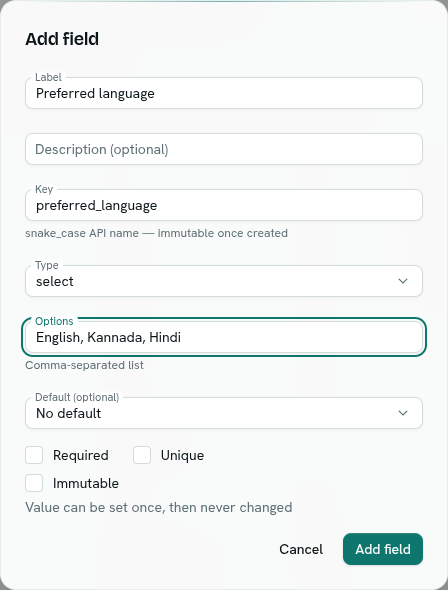
- Type a Label, for example
Serial number. The Key is filled in for you from the label. - Optional: fill in Description (optional). It helps teammates and Ask Axis understand the field.
- Check the Key. Change it if you want a different name. The key is used in CSV files, formulas and the API, and it cannot be changed later.
- Pick the Type. See Field types.
- Fill in the settings that appear for that type (see the table below).
- Tick Required, Unique or Immutable if they apply. See Field rules.
- Click Add field.
You see the message Field "Serial number" added and the field appears in the table. It shows on the record form straight away.
Settings that depend on the type
| You pick | You also see |
|---|---|
string |
Pattern (optional), a regular expression, for example ^SKU-[0-9]+$ |
number, currency |
Min (optional) and Max (optional) |
currency |
Currency unit, a 3-letter code such as USD. Fill it in to lock the field to one currency. Leave it empty so each value can carry its own currency. |
select, multiselect |
Options, a comma-separated list such as small, medium, large (at least one) |
ref, refs |
Points at, the record type the field links to (required) |
| Any type that can be calculated | A Computed checkbox. See Computed fields. |
| Most types | Default (optional), applied when a new record leaves the field empty |
Default (optional) is a text box for most types, a drop-down of your options for select, and No default / Checked / Unchecked for bool. It is not offered for ref, refs, multiselect, file or computed fields.
What happens next
- Existing records get an empty value for the new field. If you made it required, older records are not changed. Data quality can find them.
- The field appears in the type's Settings table with badges such as required, unique or immutable.
- The first six fields of a type are shown as columns in its list. The rest are on the form and in CSV export.
- New custom fields appear on the record form. On types that also have built-in fields they sit in an Additional properties section under the built-in ones.
Tips
- Decide the key carefully. Use short words with underscores, such as
serial_number. - To add a field that is a number the system generates (for example
INV/2026/0001), add astringfield, then set up auto-numbering.
Troubleshooting
Key must be snake_case, 2-64 chars, starting with a letter The key can only use lowercase letters, digits and underscores, must start with a letter and be 2 to 64 characters long.
A field with this key already exists Pick a different key. Keys must be unique inside a record type, including the built-in fields.
Select fields need at least one option Type at least one option into Options.
Pick the record type this field points at Choose a type in Points at.
Computed fields need a formula You ticked Computed but left Formula empty.
"id" is reserved
The names id, created_by, created_at, updated_at and deleted_at belong to every record and cannot be used as keys. For a currency field, <key>_currency is also taken, because it holds the currency code.