Send a message later
Schedule an email, SMS or WhatsApp message for a later time, then change or cancel it before it goes out.
Write a message now and have it go out later — an offer timed for the morning, a reminder the day before an appointment, a note you want to arrive during office hours.
Before you start: you need Can send (or Full control) on the Messaging app on the Roles page, and a connected account. See Connect an account.
Schedule a message
- Start a message as usual — Send a message in Activity, or from a record's Messages tab. See Send a message.
- Tick Send later.
- Pick the date and time under Send at. It is in your own time zone, and can be from 5 minutes to 90 days ahead.
- Click Schedule.
The message is checked straight away — the account, template, recipient and wording — so a mistake shows now, not when it is due.
Change or cancel it
Scheduled messages are listed under Scheduled at the top of Activity.
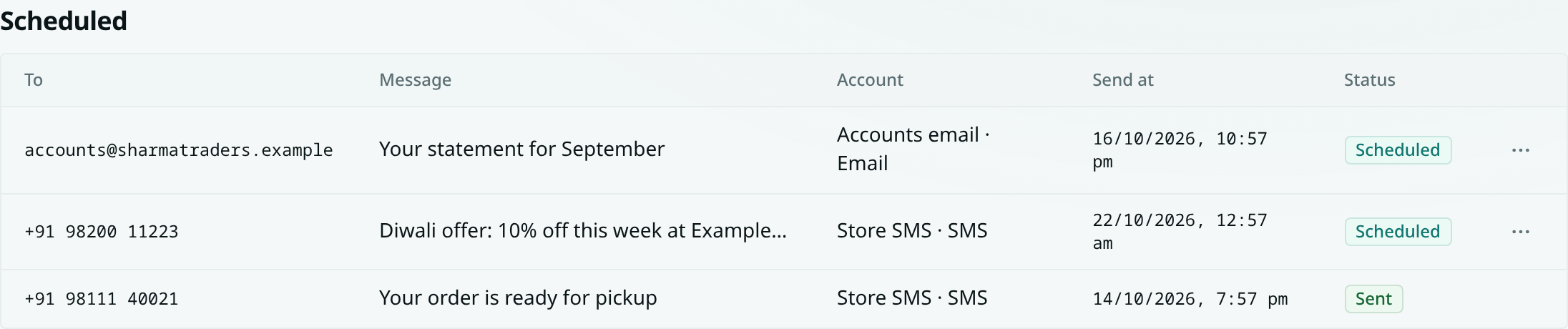
Open a row's ⋯ menu:
- Change time… picks a new date and time.
- Cancel stops it. It will not be sent.
Once a message has gone out its row shows Sent, and its delivery status is in the activity log below.
When it goes out
- It goes through the same checks as sending now. Opted-out and bounced addresses are skipped, and WhatsApp only takes free text within 24 hours of the customer's last message — otherwise use an approved template.
- It is sent as the person who scheduled it. If they have left the workspace or lost send access by then, it is not sent and the row says why (Not sent).
- If the message goes to a record, the address is read when it is sent, so an updated phone number or email is used.
- Messages go out within about a minute of the time you picked.
Scheduled broadcasts
A broadcast can also be scheduled when you send it. To move it, open its row menu in Broadcasts and choose Change time…. See Broadcasts.