Approve requests from email or WhatsApp
Approve or reject leave, expense claims, attendance corrections and overtime straight from the email or WhatsApp message, without opening People first.
When someone asks for leave, files an expense claim, corrects their attendance or claims overtime, the person who has to decide gets the request by email and, if they've switched it on, on WhatsApp. Each message has Approve and Reject buttons, so you can decide in a few seconds from your phone.
Before you start: you get these messages when a request is waiting on you: as the person's manager, or as one of the HR contacts set in People. Deciding as HR needs Can approve on People (HR) on the Roles page.
Choose how requests reach you
- Open your account menu and choose Your account → Notifications.
- In the Approvals row, switch on Email, WhatsApp or both.
- For WhatsApp, your mobile number has to be verified under Sign-in methods.
Approve or reject from an email
- Open the email. It names who asked and what for, for example "Esha Rao asked for 2 days of casual leave (20 Oct – 21 Oct)".
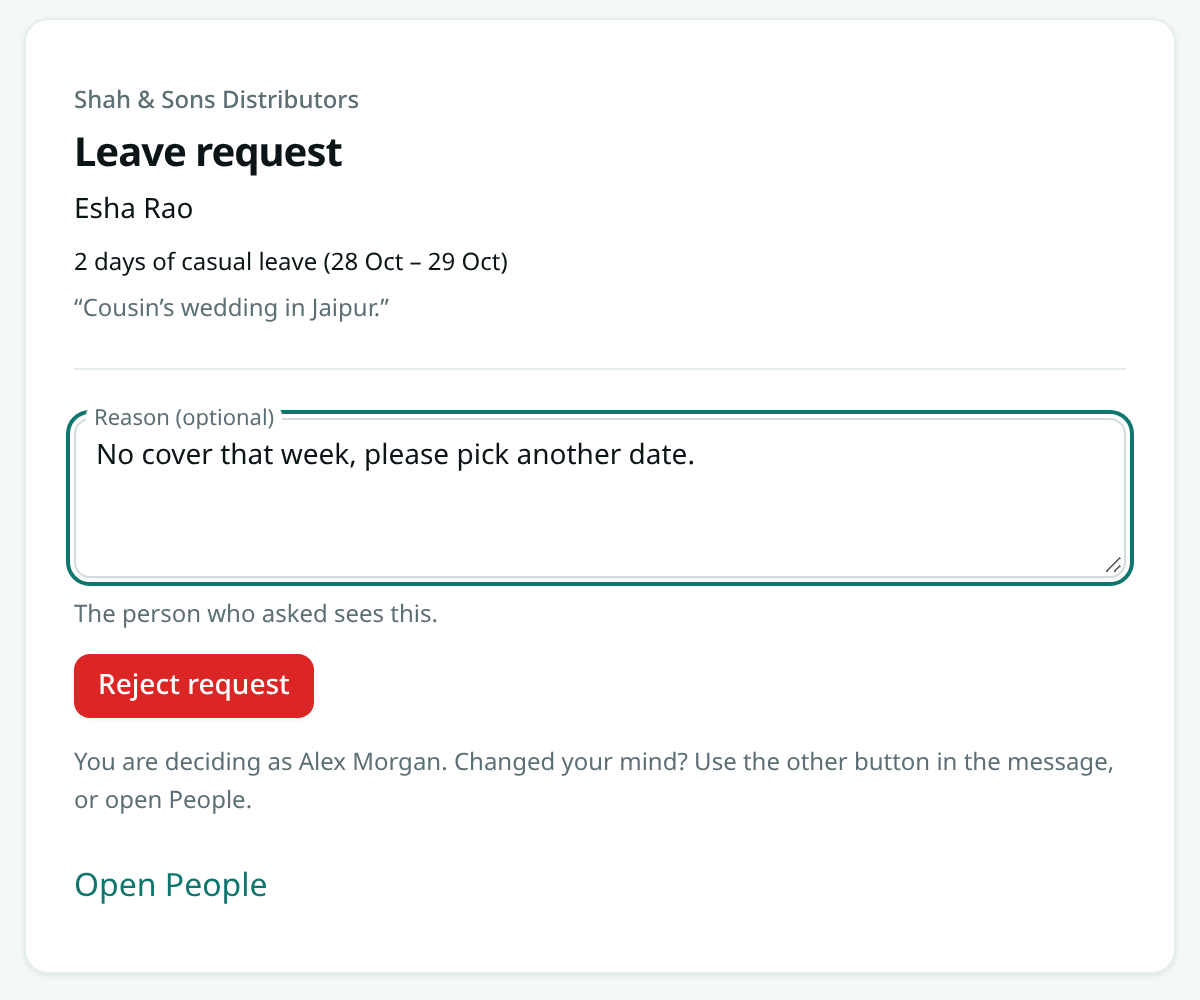
- Click Approve or Reject. A page opens showing the request, the reason the person gave, and who you're deciding as.
- On the page, click Approve request or Reject request. When you reject, you can add a reason first; the person who asked sees it.
- The page confirms what happened. If the request needs a second approval (for example HR after the manager), the next approver gets their own message.
Opening the link on its own never decides anything, so it's safe if your email app previews links.
Approve or reject on WhatsApp
- The WhatsApp message has the same Approve and Reject links and a short code, for example "Or reply APPROVE 7KQ2PX or REJECT 7KQ2PX followed by a reason."
- Tap a link, or reply with the word and the code:
- APPROVE 7KQ2PX to approve
- REJECT 7KQ2PX No cover that week to reject with a reason
- You get a reply saying the request was approved or rejected.
Good to know
- Links work for 3 days. After that, decide in People instead. Pending requests are still there.
- Each link works once. After you decide, the link and its pair show that the request is decided. The same happens if someone else decided it first, or the person withdrew it.
- You can't decide your own request from a link, just like in the app. If you no longer have approval access, the page says so and changes nothing.
- Anyone who has the link can use it, so don't forward approval emails.
- If several requests reach you within a few minutes, you get one email or WhatsApp message for the first one, and the next one says how many more are waiting. All of them are in your notifications in AxisIQ.
- WhatsApp messages only reach you if you've messaged the AxisIQ WhatsApp number in the last 24 hours. Otherwise you'll still get the email.
- Approving overtime from a link approves all the claimed hours. To approve fewer hours, decide in People → Shifts.
- Loan and salary advance requests aren't sent with buttons. Decide those in People → Payroll → Loans.
- Every decision is recorded in the workspace's activity log, along with where it was made (the app, an email or WhatsApp link, a WhatsApp reply or Ask Axis).