Import records from CSV
Bulk-create up to 500 records from a CSV file, with the column format for every field type and how errors are reported.
Create many records at once from a CSV file. Each row of the file becomes one new record.
Before you start: You need Can add & edit (or higher) on Business records, which includes importing. Import always creates new records. It never updates existing ones.
Steps
- Open the record type's list.
- Click Export first to download a file with the correct columns. Open it in a spreadsheet, delete the rows you do not need and add yours. Keep the header row.
- Back in AxisIQ, click Import at the top of the list.
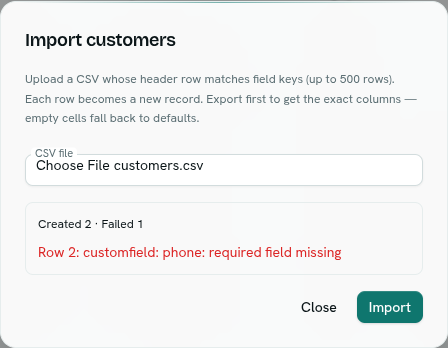
- Under CSV file, choose your file.
- Click Import.
The dialog shows Created 48 · Failed 2. Failed rows are listed as Row 7: <message> so you can fix them. A toast also says Imported 48 customers (or Imported 48, 2 failed).
File rules
- The first row is the header. Each column heading must be a field key exactly as shown in Settings (for example
email,unit_price), not the label. - Columns whose heading is not a field key are ignored, including
idandcreated_at. - At most 500 data rows per file. A longer file is refused as a whole with "at most 500 rows per import". Split it into several files.
- The file needs a header and at least one data row.
- The file must be a valid CSV. Short rows are allowed; missing cells count as empty.
- Each row is handled on its own. A bad row is reported and skipped; the other rows are still created. There is no all-or-nothing rollback, and no undo.
- Row numbers in messages count data rows from 1, not counting the header.
How each cell is read
| Field type | What to put in the cell |
|---|---|
string, text, email, url, file |
The text |
number |
A plain number such as 1250.50 |
currency |
1250.50 INR (amount, space, 3-letter code) or just 1250.50. A missing code uses the field's locked currency, or the workspace default. |
bool |
true or false |
date |
YYYY-MM-DD |
datetime |
An RFC 3339 time such as 2026-10-04T09:30:00Z |
select |
One of the field's options, spelled exactly as saved |
multiselect |
A list such as ["red","blue"] or `red |
ref |
The linked record's ID (a UUID), not its name. Use Copy ID in the row menu. |
refs |
A list of IDs, as ["id1","id2"] or `id1 |
What happens to empty cells and special fields
- An empty cell is left unset, so the field's default applies. A required field with no value makes that row fail with
<key>: required field missing. - Auto-numbered fields get the next number when the cell is empty or the column is missing. A number you supply is kept.
- Computed columns are ignored. They are worked out for you.
- Every field rule applies, including unique and patterns.
- Cells that begin with
'followed by=,+,-,@are read without the leading'. AxisIQ adds this mark when it exports to keep spreadsheets from running a cell as a formula, so a round trip gives you your original value back. - Flows, notifications and the activity trail see imported records like any other new record.
Troubleshooting
Import failed The file could not be read or was refused as a whole (more than 500 rows, no data row, or not a CSV). Check the file and try again.
Row 3: <key>: must be one of the configured options
The cell does not match one of the select options. Match the spelling exactly.
Row 5: a unique field already holds this value
That value is already used by another record, or earlier in the same file.
Row 9: <key>: expected true or false
A bool cell holds something other than true or false.
Created 0 · Failed N Most often the headings are labels instead of keys, so no column matched. Export a file first and copy its header row.
Related
- Export records to CSV
- Field types
- Edit records in Sheets for larger or ongoing edits