Record types and apps
What a record type is, how types are grouped into apps and launcher categories, and what you see when you open an app.
Record types
A record type is a kind of thing you keep track of: Customer, Order, Student, Equipment. Each type has:
- a list of its records,
- a form to create and edit one record,
- a set of fields that decide what a record holds.
There are two kinds of record types:
| Kind | Where it comes from | What you can change |
|---|---|---|
| Built-in | Ships with AxisIQ (invoices, payments, accounts and locations, used by Invoices & Payments, Accounting and In-Store Checkout). | Add custom fields. Built-in fields are marked base and cannot be deleted. |
| Custom | Created for your workspace by an industry template or by Ask Axis. | Add, change and delete fields. |
Note: There is no "New record type" button in the app. To add a type, ask Ask Axis, for example "Add a new type of record to my workspace", or start from an industry template when you create the workspace.
A record type's key is lowercase letters, digits and underscores (2 to 32 characters, starting with a letter). Keys that belong to AxisIQ's own features cannot be used for your types.
Apps and menu groups
Record types appear inside apps. An app is a menu entry in the app launcher that groups related types, such as Sales or Academics.
- Apps built for your business (from a template or Ask Axis) appear first in their own launcher category. A category is a free-form heading such as Operations or Finance. If none is given the app is filed under Operations.
- Each app belongs to one launcher category and has an icon.
- A record type that is not filed under any app appears in a fallback app called Records, so nothing you built is ever out of reach.
The app launcher is the search box at the top of every page (Search apps…, shortcut Ctrl K). Pick a category on the left, or type to search by app name or description.
Inside an app
When you open an app you see:
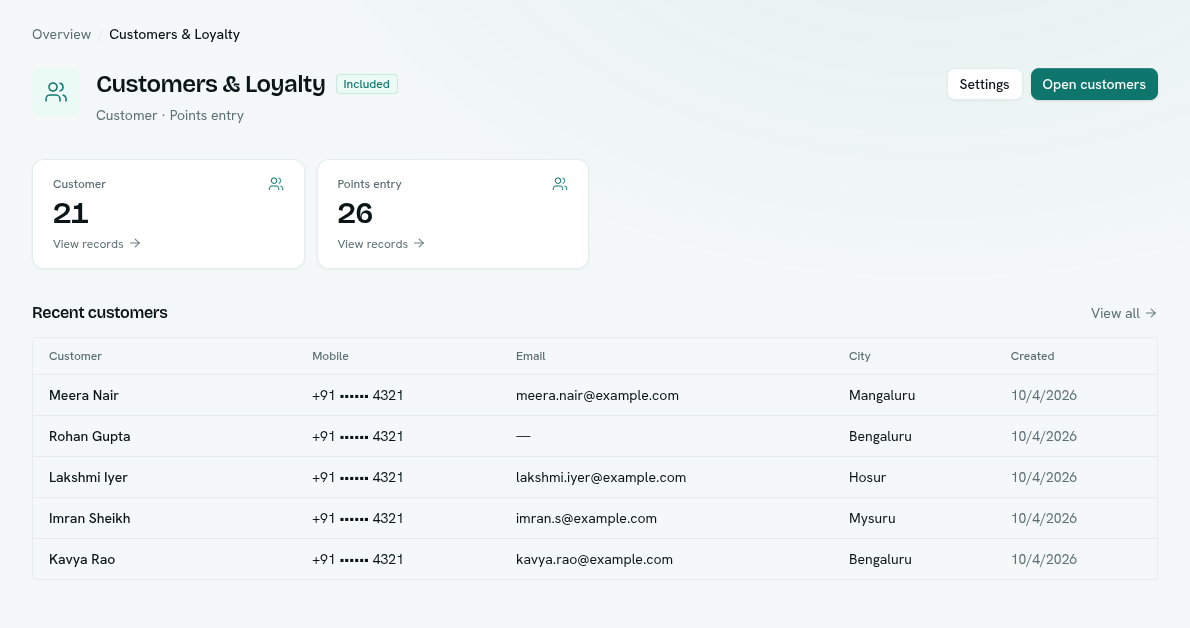
- Overview — one tile per record type with its record count and a View records link, plus a Recent … table with the newest records of the first type and a View all link. Two buttons sit at the top: Settings and Open … (the first record type).
- Records (left rail) — one entry for each record type. Types that exist only to hold line items (for example order lines) are hidden here because you edit them inside their parent record. See Links and line items.
- Settings — the app's data model. See Add a field.