Workflow automation for small business: 10 office tasks to automate
Ten recipes for workflow automation for small business: order approvals, overdue invoices, leads, onboarding, webhooks. Plus a checklist for any tool.

Workflow automation for small business means writing down the rules your office repeats every day and letting software run them. In AxisIQ, a flow starts from one trigger (a saved record, a schedule, a webhook, someone joining), checks your conditions, then acts: updates a record, sends a WhatsApp, or asks for approval. Below are ten recipes to copy.
Why do repetitive office tasks keep slipping?
Most offices run on rules nobody wrote down: check big orders before dispatch, chase overdue invoices, get the laptop ready for a new hire. Each rule lives in one person's head or a WhatsApp group, and works until that person is on leave or busy at month end.
The real cost isn't the minutes. It's the large order shipped without sign-off, or the overdue invoice nobody noticed.
How does visual workflow automation work in AxisIQ?
Flows is the workflow builder inside AxisIQ. It sits in the same system as your orders, stock and invoices, so a rule reacts to the change itself. Nothing is polled.
- Go to Launcher › Automation › Flows and click New flow. You can also open Templates and use Describe a flow: type the rule in a sentence and AI drafts the graph. Check the record types and fields it guessed before saving.
- Add the trigger. A flow has one, for example Record event, Schedule, Manual, Calendar event, People event, Webhook or Work queue event. The triggers reference covers each.
- Add a Condition block. It sends the flow down its true or false output.
- Add actions: update or create a record, send a message, post to Relay, call a web service, wait, or ask for approval.
- Fill fields from the Insert value menu, for example
{{trigger.record.total}}. Values you reuse go in the flow context, like{{context.threshold}}. - Click Test to run on sample data, with nothing sent or changed.
- Save and switch it On. Every run appears under Runs, and the owner is alerted by email and in the inbox if a run fails.
For plain "tell me when this happens" rules, a notification rule is simpler.
Which repetitive office tasks can workflow automation for small business handle?
Each recipe names the feature it uses and the habit it replaces. Use your own field names.
1. When an order above ₹50,000 is created, AxisIQ asks the owner to approve it
- Uses: Record event trigger (Created) on your order type, a Condition on the total against
{{context.threshold}}, then on the true branch an Update record block that sets status toawaiting approval, followed by an Approval block. After approval, a second Update record sets it toapproved. - Note: the order is saved before the flow runs, so dispatch should only pick up orders marked approved.
- Replaces: "Always call the owner before dispatching a big order."
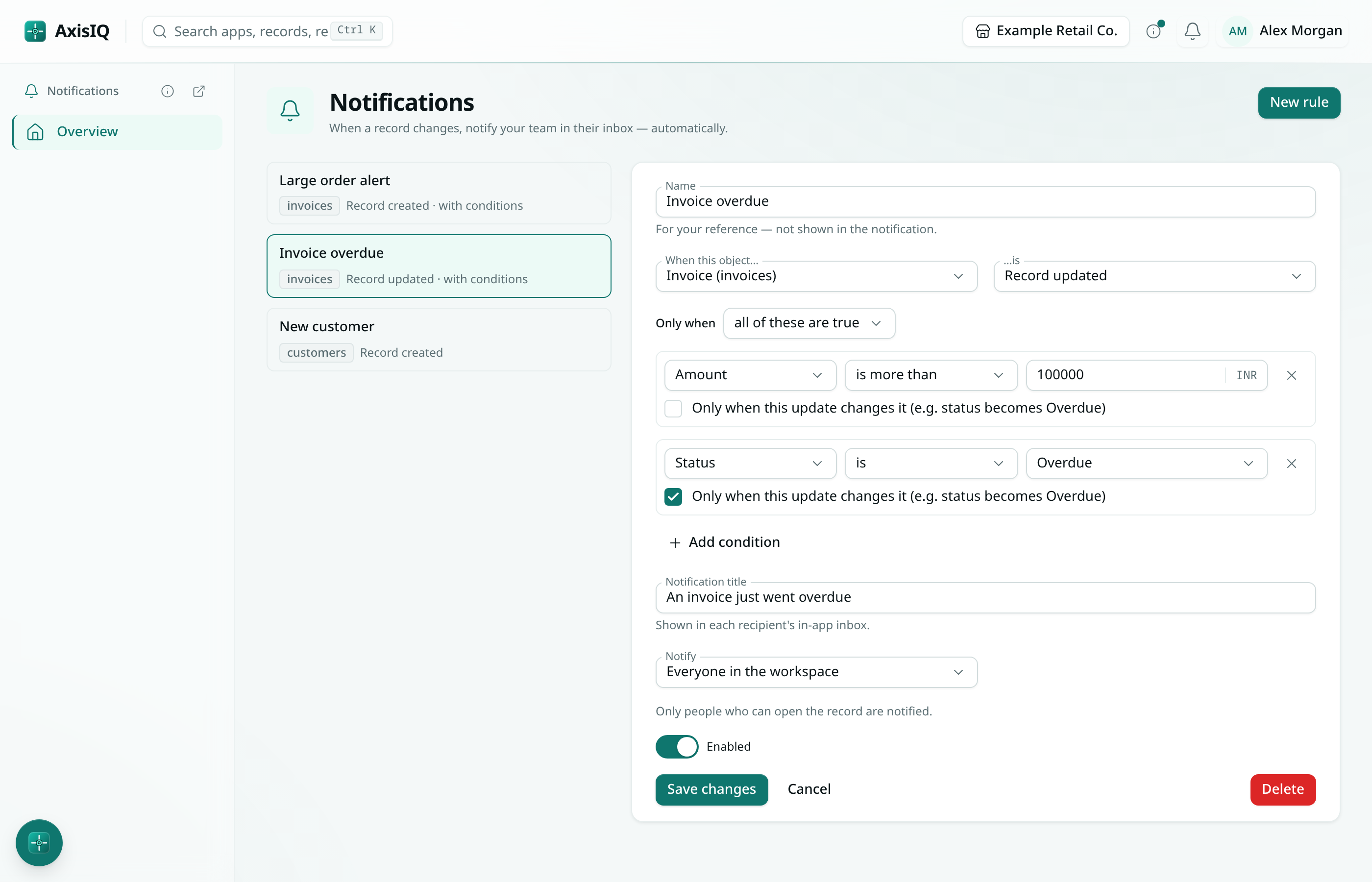
2. When an invoice turns Overdue, the right people hear about it once
- Uses: a notification rule with conditions on invoices, Record updated: Status · is · Overdue with Only when this update changes it ticked, plus Amount · is more than ·
100000INR (₹1,00,000) if you only want the big ones. Editing a note later doesn't fire it again. - Replaces: someone scanning the receivables list every morning.
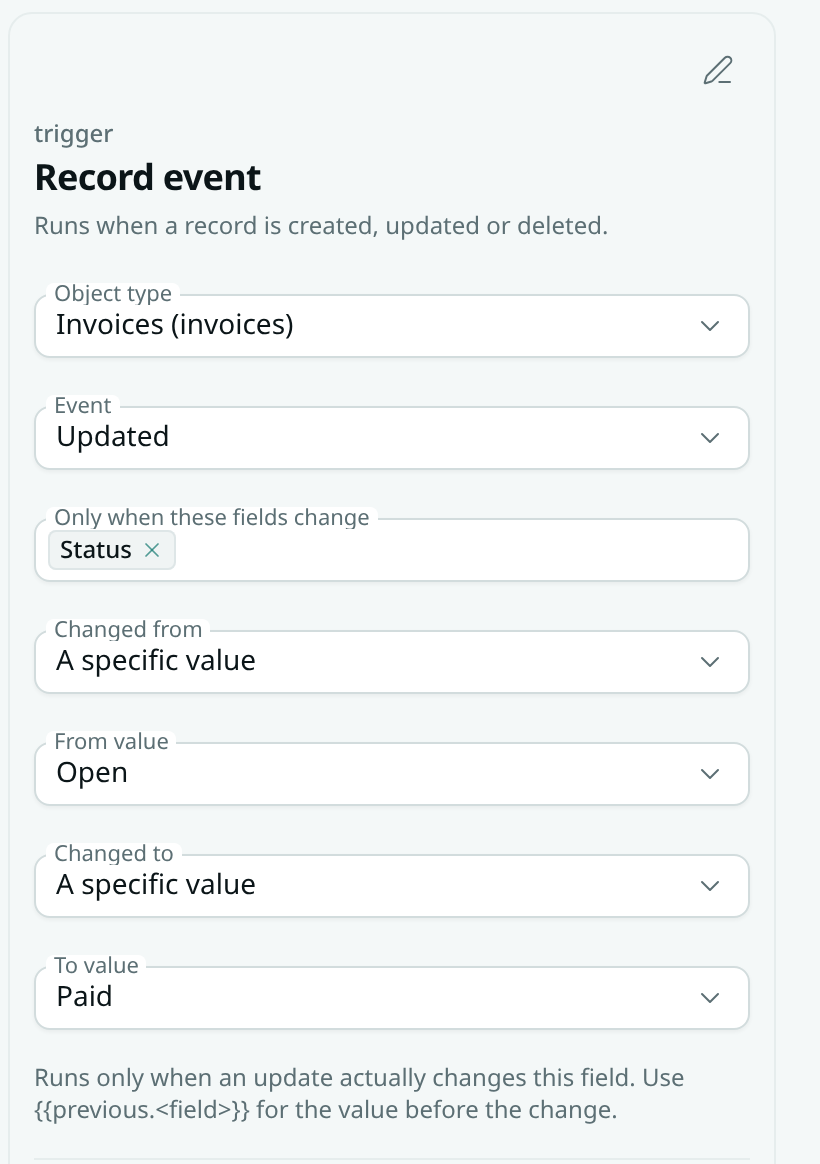
3. When an invoice moves from Open to Paid, the order moves on
- Uses: the field changed trigger. Record event, Event = Updated, watch Status, Changed from = Open, Changed to = Paid. Then an Update record block on the linked order, or a post to Relay for dispatch. Other saves don't start it.
- Replaces: accounts messaging dispatch "payment received, please release".
4. When an item's quantity drops below its reorder level, a draft purchase order appears
- Uses: Record event (Updated) watching the quantity field on your item record (use your own field names; this assumes you keep a reorder level on the item). Add a Condition that fires only on the crossing:
{{previous.quantity}}is at least your reorder level and{{trigger.record.quantity}}is less than it. Then Create record drafts the purchase order: one draft per drop, not one per sale. - Alert only: use a notification rule with is less than against a fixed number (for example quantity is less than 20) and Only when this update changes it ticked.
- Replaces: the weekly godown walk to find out what ran out.
5. When a new lead comes in, it gets an owner and a WhatsApp welcome
- Uses: Record event (Created) on leads, a Condition on source or city, Update record to set the owner, then a Send message block that sends WhatsApp from a saved, Meta-approved template through your connected provider.
- Replaces: leads sitting in a shared inbox until someone claims them.
6. When someone joins, the onboarding checklist starts by itself
- Uses: the New joiner checklist: offer letter, documents, laptop and access, workspace invite, handbook, welcome meeting and a 30-day check-in. Each task has an owner and a due date counted from the joining date.
- Replaces: HR's onboarding spreadsheet.
7. When someone leaves, exit tasks and asset returns are listed
- Uses: the Exit checklist, which starts when an employee is set to On notice or Left. It covers handover, access and full and final settlement, plus a "Return" task for every asset the person holds.
- Replaces: finding out at month end that the laptop never came back.
8. When a leave or expense request is filed, the approver decides from their phone
- Uses: approvals from email or WhatsApp. The message carries Approve and Reject buttons. Covers leave, expenses, attendance corrections and overtime.
- Setup: email is on by default. For WhatsApp, switch on WhatsApp in the Approvals row of Your account → Notifications, verify your mobile under Sign-in methods, and message the AxisIQ WhatsApp number once a day (messages only arrive within 24 hours of your last one). Links work for 3 days; loans and salary advances are decided in the app.
- Replaces: "Sir, did you see my leave request?"
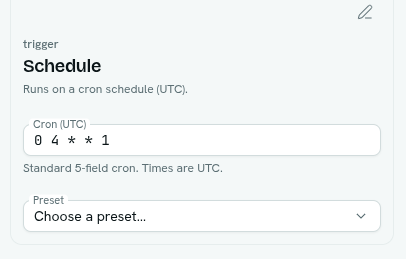
9. Every Monday morning, AxisIQ opens follow-ups for unpaid orders
- Uses: a Schedule trigger. Cron is in UTC, so 09:00 IST on Mondays is
30 3 * * 1. Fastest start: open Templates › Describe a flow and type "every Monday at 9am IST, open a follow-up task for each order unpaid after 30 days". The draft proposes the steps; check the record types and fields it guessed before saving. - Replaces: the Monday ageing review done by hand.
10. When your online store or payment provider sends an event, AxisIQ records it
- Uses: a Webhook trigger. Save the flow, click Copy URL, paste it into the other tool's webhook settings. Read values like
{{trigger.body.amount}}and pass them to a Create record or Update record block. If the sender signs deliveries, fill Signature header, Signature encoding and Signing secret; unsigned or wrongly signed deliveries are refused. Use New URL if the address leaks. - Note: a sender may deliver the same event twice, so look the record up first.
- Replaces: copying payment confirmations from a gateway dashboard into your books.
Worked example: how would a distributor set up recipe 1?
Take a hypothetical electrical distributor in Pune. The owner wants to sign off any order over ₹50,000; everything else is marked standard.
- Trigger: Record event on the order type, event Created.
- Context: add
threshold=50000. When the limit changes, you edit one field. - Condition: order total is greater than
{{context.threshold}}. - True branch: Update record, set status to
awaiting approval; then an Approval block naming the owner; after approval, Update record, set status toapproved. Tell dispatch to release onlyapprovedorstandardorders. - False branch: Update record, set status to
standard. - Test: click Test with a sample order. Then create one real order above the threshold and one below, and check Runs.
The order workflow guide walks through the same pattern block by block.
Which office tasks should you automate first?
Use this checklist with any tool. A task that passes most rows is a good first automation.
| Check | Good sign |
|---|---|
| Can you write it as "when X, if Y, do Z"? | One sentence, two outcomes. Three "and then"s means two flows. |
| Does it happen at least weekly? | Frequent rules pay back fastest. |
| Is the trigger something recorded? | A saved record, a date, a status change, an incoming webhook. |
| Is the action safe to repeat? | Setting a status is safe; adding to a running total is not. |
| Who should it run as? | Someone stable whose access matches the job. |
| Who hears when it fails? | A named owner, not "the team". |
What should a small business look for in an automation tool?
- Does the trigger come from your own records, with no polling or sync lag?
- Can you test without sending anything?
- Whose permissions does the automation use: a person's, or one all-access key?
- What happens when a run fails, and who is told?
Want your overdue invoices flagged by a rule instead of a morning scan? Start a 30-day free trial (no card needed) and set up recipe 2 in a few minutes, or book a free demo to see it on sample data.
What AxisIQ automation doesn't do
- No connector catalogue. One HTTP request block; you map fields from the other service's API docs yourself.
- Schedules run in UTC. Convert from IST (UTC+5:30) when you write the cron.
- Runs happen at least once, not exactly once. Avoid actions that pile up on a retry.
- Waits top out at 30 days.
- Conditions compare; they don't compute. Tiered discounts need a Run function block in JavaScript.
- A flow runs as the last person who changed its logic. If they leave the workspace, the flow is skipped until someone makes a small change to its logic and saves, so it runs as them. See who a flow runs as.
- WhatsApp alerts to staff only arrive within 24 hours of their last message to Ask Axis on WhatsApp; otherwise the email still goes.
FAQ
Do I need to write code to automate tasks in AxisIQ?
No. Triggers, conditions, record updates, messages and web calls are blocks you place on a canvas. JavaScript is one optional block for logic a comparison can't express.
Can AxisIQ send WhatsApp messages automatically?
Yes. The Send message block sends email, SMS or WhatsApp through the provider account your company connects, and WhatsApp messages to customers use Meta-approved templates.
What happens if a flow fails?
Your team's work isn't blocked, because flows run after the record is saved. The owner gets an inbox notification and an email naming the flow, the failing block and the error, at most once an hour per flow.
How much does AxisIQ cost?
The Core plan is ₹4,999/month (GST extra). Flows is built into every workspace and can't be switched off, so it isn't a paid add-on. You can start a 30-day free trial with no card needed; see pricing.
Start with one recipe
Pick the task that annoyed you most this week, write it as one sentence, and build it. To see large orders and overdue invoices handled by rules instead of reminders, start a 30-day free trial with no card needed, or book a free demo and see recipes 1 and 2 running on sample orders and invoices.