Workspace settings
Rename your workspace and set its default currency.
You will change the workspace name or the currency that money fields fall back to.
Before you start: Changing settings needs the Organization settings permission at Can change settings. Without it the page is read-only and says "You don't have permission to change these settings." The owner always has it.
Steps
- Open the workspace name menu in the top bar and click Organization settings.
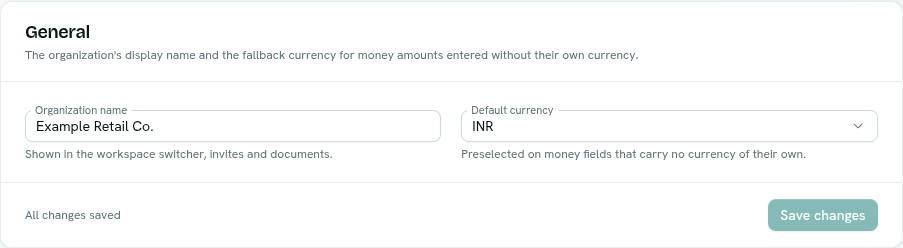
- In the General card, edit Organization name. It is shown in the workspace switcher, invites and documents. It must be at least 2 characters.
- Choose a Default currency. It is preselected on money fields that carry no currency of their own.
- Click Save changes. The footer reads "Unsaved changes" until you save, then "All changes saved".
The rest of the page
| Card | What it shows |
|---|---|
| Industry template | Which template built the workspace and its example data. See Templates and example data. Visible only in some cases. |
| Apps | Switches for optional apps. See Turn apps on or off. |
| Workspace upgrade available | Only when new features are waiting. See Upgrade your workspace. |
| About | Organization ID (with Copy), Your role, Workspace version, Created. Use the ID for API calls and support. |
| Elsewhere | Shortcuts: Workspace setup assistant, Team & Permissions, Billing & usage, Account security. |
Tips
- Changing the default currency does not re-price amounts already stored.
- People and permissions have their own page, Team & Permissions.